Key Takeways
- Smartphone-based vehicle control and diagnostics hub
- Remote start, lock/unlock, and climate pre-conditioning
- Real-time vehicle health, tire pressure, and alerts
- Easy setup via VIN, account login, and OnStar sync
- EV features include charging status and route planning
- Troubleshooting usually involves connectivity or app refresh issues
Imagine walking out of an office building on a freezing winter afternoon or a scorching summer day, pulling out your phone, and ensuring your vehicle’s cabin is perfectly pre-conditioned before you even step outside. In the modern automotive ecosystem, your smartphone has evolved into a digital key fob. The primary bridge making this seamless connectivity possible for GM owners is a specialized piece of mobile software.
Learning how to navigate the mychevrolet app is essential to unlocking the true potential of your modern vehicle. This intuitive digital workspace acts as a central hub for vehicle diagnostics, remote commands, and localized navigation features. Whether you are aiming to track your electric vehicle’s charging status or simply need to unlock your doors from across town, configuring this mobile tool properly will fundamentally change your daily ownership routine.
AI Overview
The MyChevrolet app is a mobile platform that connects GM vehicles to smartphones, enabling remote start, door lock/unlock, vehicle diagnostics, tire pressure alerts, EV charging management, and OnStar integration. It requires VIN-based setup, account login, and permissions. It also supports family sharing and rewards tracking. Troubleshooting focuses on network, login, and vehicle safety checks.
Unlocking the Core MyChevrolet App Features
The modern version of this software provides a wide array of tools that give you total control over your driving experience. The redesigned interface consolidates critical details right onto your smartphone’s home screen. Rather than guessing when your vehicle requires professional maintenance, the software acts as an active monitoring assistant that continuously reads data transmitted directly from your car’s internal computer networks.
Deeply understanding the various mychevrolet app features ensures you never miss an oil change or an unexpected diagnostic trouble code. Every driver can benefit from mastering these advanced mychevrolet app features to maintain their car’s health. From tire pressure alerts to charge management, maximizing the built-in mychevrolet app features elevates your total driving convenience.
Advanced Digital Toolset
-
Diagnostic Dashboard: The vehicle status interface displays precise, real-time measurements of your engine oil life percentage, fuel range capacity, and specific odometer readings.
-
Tire Pressure Monitoring System: The software continuously tracks individual tire pressure levels, warning you if a tire is underinflated before you pull onto a fast highway.
-
Smart Driver Network: An optional coaching program evaluates your braking habits, acceleration smoothness, and overall driving skills, giving you a monthly score that could potentially help you secure insurance discounts.
-
GM Rewards Tracking: Seamlessly view your accumulated reward point balance inside the application window, making it simple to redeem your points for genuine accessories or routine service visits.
Step-by-Step My Chevrolet App Setup
Getting your vehicle linked to your personal mobile profile takes very little time. Before starting the configuration, make sure you have your vehicle’s unique 17-character Vehicle Identification Number (VIN) written down, which you can easily spot on your insurance paperwork or stamped right on the driver-side dashboard near the windshield.
Following a correct mychevrolet app setup is vital for securing a stable encrypted link between your phone and your SUV. If you rush through the mychevrolet app setup, certain remote features might fail to authorize properly. Take your time during the initial mychevrolet app setup phase to grant all necessary background permissions, and completing this initial mychevrolet app setup correctly ensures long-term system stability.
| Setup Stage | Action Required | Key System Benefit |
| Profile Creation | Download app & build GM account | Establishes your cloud identity |
| Hardware Pairing | Enter VIN & connect Bluetooth | Pairs smartphone directly to car |
| Telematics Sync | Link active OnStar service plan | Enables long-distance commands |
| Household Sharing | Add up to 8 family profile links | Shares features without passwords |
1. Download and Account Initialization
To kick off the initial software activation, visit the Apple App Store or Google Play Store to install the latest version of the app on your mobile device. Once installed, tap the icon to open the startup screen and perform a fresh chevy app login using the specific email address and password linked to your vehicle purchase.
If you do not have an existing account, simply click the register link to create a universal GM profile. Executing a clean chevy app login is required every time you swap mobile devices. If you experience a sudden chevy app login loop, resetting your password often clears the network cache. Keep your chevy app login credentials written down in a secure place to prevent losing access to your vehicle’s remote dashboard dashboard panel.
2. Registering the Vehicle Identity
After completing your initial login sequence, the software will ask you to add a vehicle to your profile dashboard. You can manually type in your 17-character VIN or use your smartphone’s camera to scan the barcode sticker located right on your driver-side door jamb. Once recognized, the application will display a digital model of your exact vehicle trim on your mobile home screen.
3. Linking OnStar Integration
To utilize advanced connected features, the system must establish a secure bridge with General Motors’ telematics framework. This is achieved through proper onstar mychevrolet data synchronization. Utilizing the onstar mychevrolet platform enables cellular-based global positioning tracking for your peace of mind.
Without an active onstar mychevrolet link, your phone cannot communicate with your vehicle across long distances. Keeping your onstar mychevrolet account in good standing guarantees uninterrupted access to roadside assistance and stolen vehicle tracking modules.
Mastering the MyChevrolet App Remote Start Feature
The absolute most popular component of this software framework is the ability to manage your vehicle’s ignition and climate systems from miles away. Utilizing the mychevrolet app remote start feature allows you to prepare your cabin temperature perfectly, ensuring total comfort the moment you sit inside the driver’s seat.
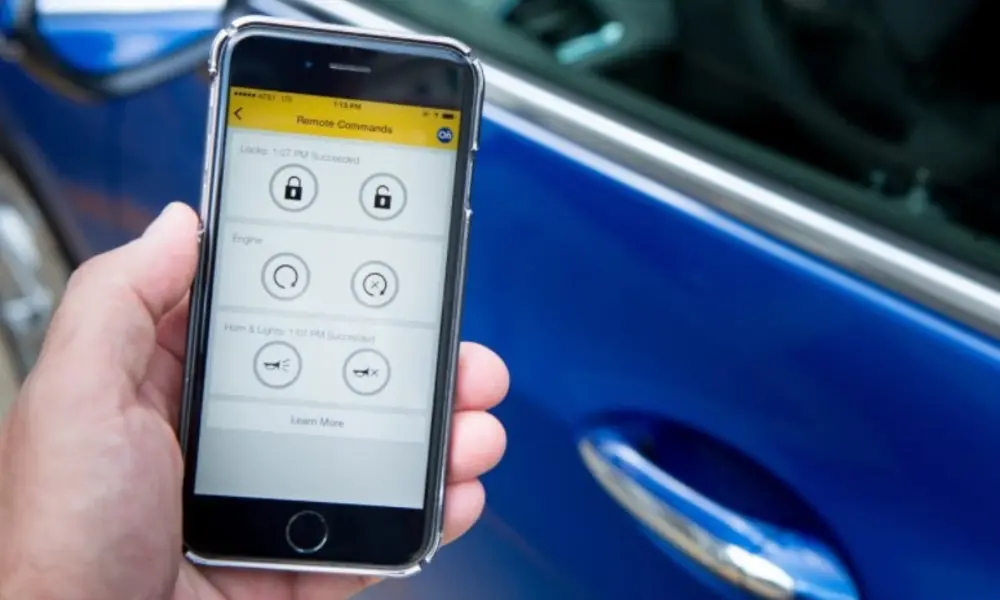
Learning to safely trigger the mychevrolet app remote start command prevents you from walking out into a freezing or overheating car cabin. If your mychevrolet app remote start is sluggish, check your cellular signal strength. Using the mychevrolet app remote start safely requires all vehicle doors to be completely shut and locked before the engine will turn over.
Managing Remote Fob Commands
To execute a command, find the remote controls bar located along the very top of your smartphone’s home screen layout. Tap the Climate or Start icon once to send an ignition command.
For added security, the interface will require you to type in a custom 4-digit PIN or use your phone’s built-in biometric fingerprint or face scanner before the signal is sent across the cellular network to turn on your vehicle’s engine.
Automatic Cabin Pre-Conditioning
If your car features automatic dual-zone climate systems, the vehicle will read external weather temperatures the moment a remote command is triggered. On freezing mornings, it will automatically activate your front defrosters, heated seats, and steering wheel heaters. On hot summer afternoons, it will activate maximum air conditioning and ventilated seating features automatically, based on your last saved settings.
Exploring Enhanced Electric Vehicle and EV Features
For drivers piloting modern electric vehicles like the Bolt EV, Blazer EV, or Equinox EV, the app transforms into an invaluable range-management tool. The software adjusts its dashboard layout automatically when an electric drivetrain is detected, swapping out standard fuel indicators for advanced high-voltage battery monitoring graphs.
Charge Management and Route Planning
-
Real-Time Charge Tracking: View your exact battery charge percentage, current charging speed, and an estimated completion time right from your office desk.
-
Find a Charge Locator: Track down nearby public charging stations, filter chargers by plug type or voltage speed, and pay for your charging session directly through your smartphone interface.
-
Intelligent Route Optimization: Map out long-distance road trips within the app interface; the system will analyze your vehicle’s live battery status and automatically place necessary charging stops exactly where you need them.
Troubleshooting a MyChevrolet App Not Working Issue
Even the most advanced software can hit an unexpected glitch from time to time. If you discover your mychevrolet app not working correctly, or if your remote commands are consistently timing out, the issue is typically caused by simple network bugs or vehicle parameters that are blocking communication. Many times, a mychevrolet app not working error code can be fixed simply by force-closing the application on your smartphone.
If you encounter a persistent mychevrolet app not working screen on your iPhone or Android device, check to ensure that background data refresh is enabled. Do not let a temporary mychevrolet app not working message ruin your drive; following standard troubleshooting steps will quickly restore your remote network connection.
Resolving Connection and Login Errors
When encountering a persistent failure or a spinning loading icon, your first step should be clearing out temporary data bugs. Log out of your user account entirely, close out the app from your phone’s multitasking screen, and check for any pending mobile software updates in your app store.
If your vehicle is parked deep inside an underground concrete garage or in a remote rural area with bad cellular reception, it will be unable to receive signals sent from your phone.
Verifying Vehicle Safety Blockers
If the app home screen shows a command error, the vehicle’s onboard computer might be intentionally blocking remote starts due to built-in safety rules. The system will automatically ignore remote start signals if a door, the hood, or the trunk is slightly ajar, or if the hazard lights are actively flashing.
Additionally, if you have triggered two consecutive remote start cycles from your phone, security safety rules require you to physically insert the key or press the dashboard start button before another remote command can be processed.
Conclusion
The modern mychevrolet app is much more than a simple digital luxury; it is a critical management tool that bridges the gap between your smartphone and your daily drive. By mastering the core system tools, completing a proper security setup, and knowing how to quickly clear up connection bugs, you can ensure your digital cockpit is always ready to perform.
For SUV owners managing their family fleets at ChevySUV, taking a few minutes to configure user profiles and link connected plans ensures an elite, stress-free ownership experience. This smart software platform featured at ChevySUV guarantees that your vehicle remains accessible, safe, and perfectly synchronized with your daily routine, keeping you in complete control no matter where your travels take you.
Frequently Asked Questions
Why does my physical key fob work but my smartphone app won’t start the vehicle?
The physical key fob utilizes short-range radio frequencies to talk directly to your car, while mobile app commands must travel across cellular networks. If your phone app is failing, it usually means your car is parked in a low-signal dead zone, your smartphone lacks a stable internet connection, or your active connected services plan has expired and needs a renewal.
How many family members can share access to a single vehicle account?
The family sharing tool inside the application settings allows you to invite up to eight individual family profiles to share a single vehicle. Each person creates their own unique credentials, meaning you never have to share private passwords just to let a family member use the remote starting features or locate the vehicle on a map.
How long will my vehicle stay running after a remote start command?
Many Chevrolet vehicles are programmed to idle for roughly 15 minutes after receiving a remote command before automatically shutting off to conserve fuel or battery power. If you need extra time, you can send a second extension command through the application interface to add another 15-minute block to the countdown window.
Does the app require a paid subscription plan to use the vehicle location map?
Yes, long-range vehicle locating, zone boundaries, and arrival notifications rely on GPS data and cellular tracking networks. These features require an active, eligible connected services plan to transfer live location maps directly onto your smartphone screen.