Key Takeaways
- 17.7-inch touchscreen serves as the central hub for vehicle controls
- Google Built-In enables native Maps, Assistant, and app access
- Wireless Apple CarPlay and Android Auto supported on many models
- Split-screen layout improves navigation, media, and settings management
- MyChevrolet app adds remote vehicle monitoring and control
- Over-the-air updates keep the infotainment system current and optimized
It’s official, the modern-day dash has gone from a handful of plastic buttons to a high-tech control center. If you’ve been in a recently redesigned Chevrolet, your eyes were probably immediately drawn to the large piece of glass atop the dash. We’re referring to that massive 17.7-inch diagonal center touchscreen.
Knowing how to use the Chevy infotainment system guides you around so that you can use your vehicle at its best. This all-new Chevy infotainment system architecture revolutionizes the cabin experience completely, merging gigantic screen real estate with supercomputer-like speed. This super-wide display keeps your navigation, climate controls, and media right where you want them, no matter if you’re in a brand-new electric SUV or a refreshed gas-powered favorite.
AI Overview
The Chevrolet 17.7-inch infotainment system combines a large driver-focused touchscreen with Google Built-In, wireless connectivity, and over-the-air updates. It supports navigation, voice commands, media, and vehicle controls through a modern digital cockpit. Features like Google Maps, Google Assistant, Apple CarPlay, Android Auto, and the MyChevrolet app create a connected, customizable driving experience.
The Core Features of the Chevy 17.7-Inch Screen
This large, chevy 17.7 inch screen is about more than visual flash; it embodies a head to toe rethinking of GM’s under-skin architecture for inside electronics. This chevy 17.7 inch screen, which has a high-definition resolution and is kitchen-sink level driver-focused tilt, acts as your vehicle’s brain.
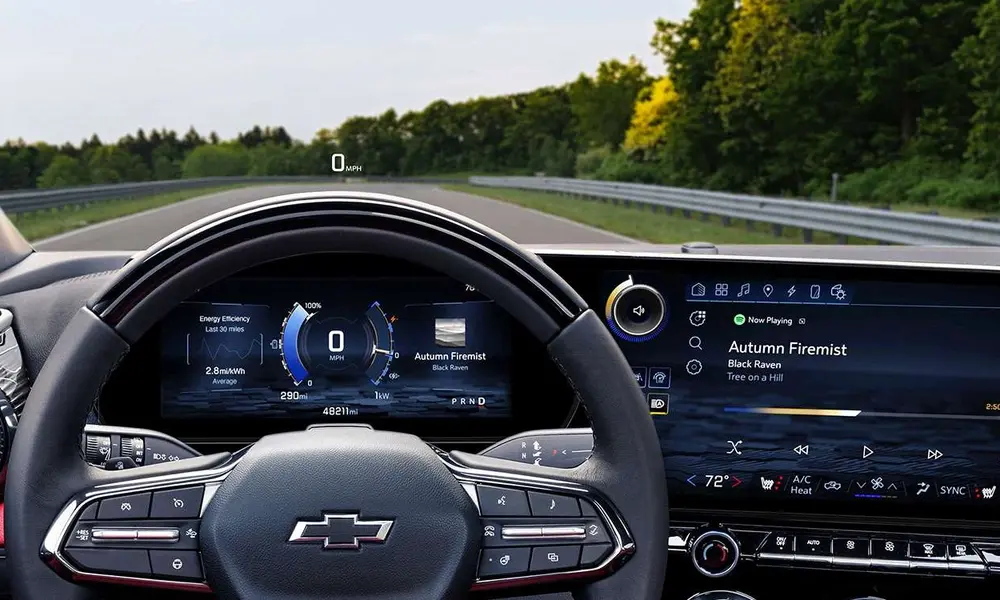
The beautiful chevy 17.7 inch screen sits alongside an 11-inch diagonal Driver Information Center just behind the steering wheel to form a unified, multi-display digital cockpit.
Display Architecture and Layout
-
Driver-Centric View: The chevy 17.7 inch screen angles itself slightly toward the driver, which makes it so easy to touch far corners of the panel with your finger or pointer, even if you’re not reaching for it or looking away from the road.
-
Permanent Digital Tray: This is a customizable quick-launch sidebar that sits flush along the left edge of the glass, allowing you to access maps, media (both streaming and from your phone), phone controls, and vehicle settings with one tap.
-
Split-Screen Setup: The extra space lets you run multiple layouts at once. This would make it so much smoother to see what you are navigating through on two-thirds of the screen while controlling a music playlist in the last one-third.
Navigating Google Built-In Integration
The biggest alteration to the contemporary chevy infotainment system is Google software running natively inside the car hardware. Officially known as chevy google built in, this means that you can say goodbye to an external mobile device powering your high-end navigation, smart voice recognition or application ecosystem.
Utilizing chevy google built in changes the way you interact with your vehicle. Because of chevy google built in, your car navigates smarter, while the chevy google built in system updates itself over the air seamlessly.
| Feature Capability | Google Native | Standard Phone External |
| Route optimization | No integration with live battery/fuel state | Only basic traffic data |
| Voice responsiveness | Deep controls on vehicle commands | App-level control only |
| Connection Type | Works on its own without a phone | Needs the phone to be paired |
| Offline Capability | Store map locally on cache | Buffers continuously on weak signals |
Google Assistant
With the sound of “Hey Google” or by pressing the push-to-talk button on your steering wheel, you can use natural speech to control your cabin. This setup understands casual language perfectly, unlike those older ones we had a few years back, which required rigid and robotic phrases for voice control.
You could ask it to change the dual-zone climate control, turn the radio station, or locate a local coffee shop all without taking your hands off the wheel.
Google Maps
Native navigation system, firmly embedded in the structure and mechanics of the car. Google Maps now gives you real-time battery status for drivers behind the wheel of electric vehicles, determines your range to your destination, and builds necessary charging stops into a route.
Google Play Store
With an automotive app marketplace, you could download programs to a dashboard store. That spares you the effort of looking down at your phone, building a safer, more unified ecosystem for podcasts, music, and audiobooks.
App Integration: Google, Apple CarPlay, and Android Auto
An important source of confusion, especially for new buyers, is how standard smartphone mirroring interacts with this layout. Though some of the newer electric vehicles we’ll be seeing are really focusing on natively-built apps, lots of the models that use those chevy touchscreen tahoe settings still play nicely with full-blown wireless smartphone integration.
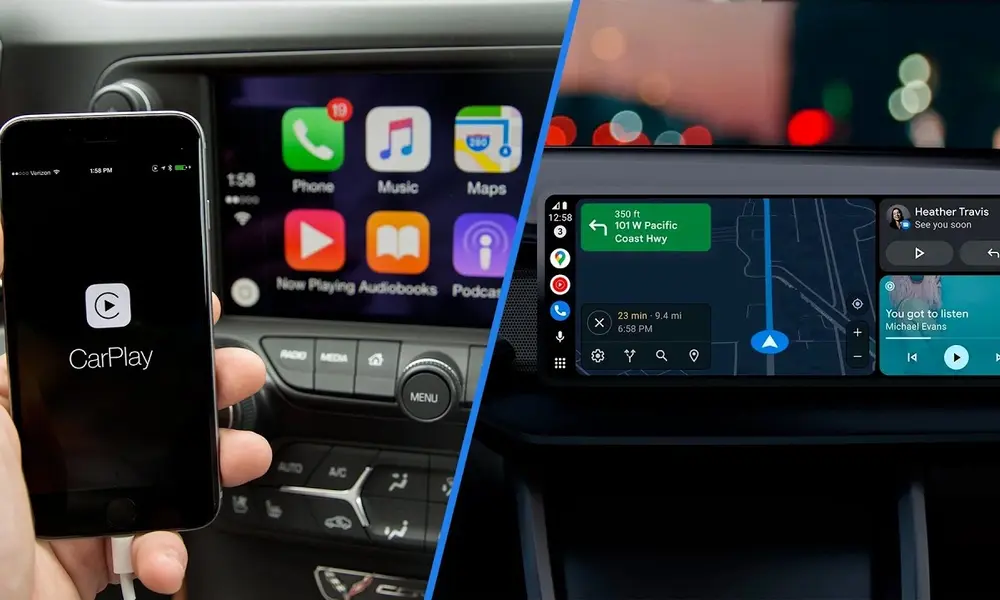
If you are configuring a custom chevy touchscreen tahoe layout, you will appreciate this versatility. The premium chevy touchscreen tahoe interface ensures high visibility, making the chevy touchscreen tahoe setup the crown jewel of the interior dashboard.
Smartphone Mirroring Stability
On models fitted with chevy carplay android auto, your phone wires are connected through a Bluetooth and 5GHz Wi-Fi framework. When using chevy carplay android auto, that big 17.7-inch display handles these interfaces nicely. The integration of chevy carplay android auto employs crisp aspect ratios, so your phone’s interface looks like it belongs, and deploying chevy carplay android auto guarantees you stay connected wirelessly.
Popular In-Vehicle Apps
When you go with the built-in system instead of your phone, the underlying platform can back an extensive list of native tools meant specifically for your ride. At ChevySUV, we suggest downloading the following must-have driver-centered apps to get the most out of your experience at ChevySUV:
-
Audio streaming: Spotify, YouTube Music, Pandora, and iHeartRadio tie directly to your user account.
-
News and Information: NPR One, The Wall Street Journal, and Audiobooks. And, as in a long-haul freeway commute.
-
Vehicle Ecosystem Utilities: The energy tracking app and specialized trailering apps provide customized safety data and towing configurations directly on the main display panel.
Step-by-Step Setup and the MyChevrolet App
You can have your new system configured in less than 10 minutes. Be sure to directly pair your vehicle dashboard with your personal mobile device using our complete mychevrolet app guide checklist, so that everything works well together.
This mychevrolet app guide simplifies the syncing process. By following this mychevrolet app guide, you unlock remote commands, making this mychevrolet app guide an essential resource for every new owner.
Step 1: Initialize Your User Profile
There will be a screen with a welcome sequence the first time you turn on the car. Log in to your personal Google account by following the prompts. This syncs your favourite locations, saved home addresses and search history straight to your on-dashboard screen.
Step 2: Connect via Bluetooth
Navigate to Phone in the Settings menu on your 17.7-inch screen, and press Add Phone. To do this, open up your smartphones bluetooth menu and find your Chevrolet vehicle; then check that the pairing pin codes shown on both screens match. If you own a compatible model, your device can connect wirelessly to enable smartphone mirroring.
Step 3: Configure the MyChevrolet Mobile App
Visit the Apple App Store or Google Play Store to download the official mobile app on your phone. Sign up, log in, and enter your car’s Unique Identification Number (VIN). When paired, this app is a wireless mirror extension of your dashboard, allowing you to monitor tire pressure, view fuel status, or pre-heat/cool your cabin from your smartphone.
Software Updates and Long-Term Maintenance
It uses built-in cellular data connections to run a routine chevy infotainment update and keeps your digital dashboard running smoothly. Not only do these OTA updates not take up space, but an automatic chevy infotainment update also occurs behind the scenes.
Running a regular chevy infotainment update requires no tedious trip to your local dealership service bay, and each chevy infotainment update continuously optimizes system performance.
Seamless Background Downloading
The automatic download of system updates is done when you are on the road. Whether you pull into a sheltered parking lot or just turn off the engine while downloading software updates, the system pauses at that moment and resumes when your car finds an unobscured wireless signal.
The Installation Process
After a download completes, your screen will display a notification when you switch to Park. With system updates, it usually takes about 20 minutes or less on average to complete the installation. During the installation, your vehicle must be parked at a safe location with its ignition turned off for safety purposes, and you cannot drive until the update is complete.
Conclusion
The high-tech 17.7-inch chevy infotainment system in this cabin is a massive upgrade. Combining a huge, easy to read glass panel with intelligent Chevy Google built-in functions, Chevrolet has made the most effective yet easy dashboard.
For drivers looking at new choices like ChevySUV, a little time with your driver profile, mobile apps, and software updates ensures an elite driving experience. This system at ChevySUV is also a digital one, which allows your car to remain quick, up-to-date, and in sync with your world far into the future.
Frequently Asked Questions
Can I still use Apple CarPlay on the Chevy 17.7-inch screen?
Availability varies by model. Many gas-powered models featuring the 17.7-inch screen fully support wireless Apple CarPlay and Android Auto. However, based on available data, certain new electric vehicle models phase out smartphone mirroring in favor of the native Google built-in system.
Do I need a paid data subscription to use Google built-in features?
Core navigation features and system voice commands typically include a complimentary trial period from the factory. After the trial ends, an active OnStar data plan or a connection to an external Wi-Fi hotspot is required to keep real-time map data, traffic routing, and downloaded apps working.
How do I manually check for a chevy infotainment update?
To check manually, tap the Settings icon on your center display. Navigate down to “System,” select “Vehicle Software,” and click “Updates.” If a new software update is available, the system will show instructions on your screen to begin the download.
What should I do if my touch screen freezes or stops responding?
If your screen becomes unresponsive, you can perform a soft system reset. Put the vehicle in Park, press and hold the Mute and End Call buttons on your steering wheel simultaneously for roughly 15 seconds, and wait for the central display screen to reboot.